
Manual: How to Stream to Smashcast With External Encoder
Why Streamster?
Streamster is a live broadcasting app, designed to create a perfect live stream and deliver it to multiple platforms, including Smashcast, at once with cloud-based technology. It is available for Windows users and is popular among gamers, artists, performers, influencers and other content creators from all over the world.
Starting using Streamster to expand your audience is very simple – just download and install the app.
1. Set up the external encoder on Smashcast
1.1. Log in your Smashcast account.
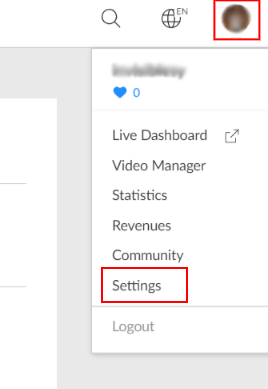
1.2. Click on your profile picture, and choose Settings in the dropdown.
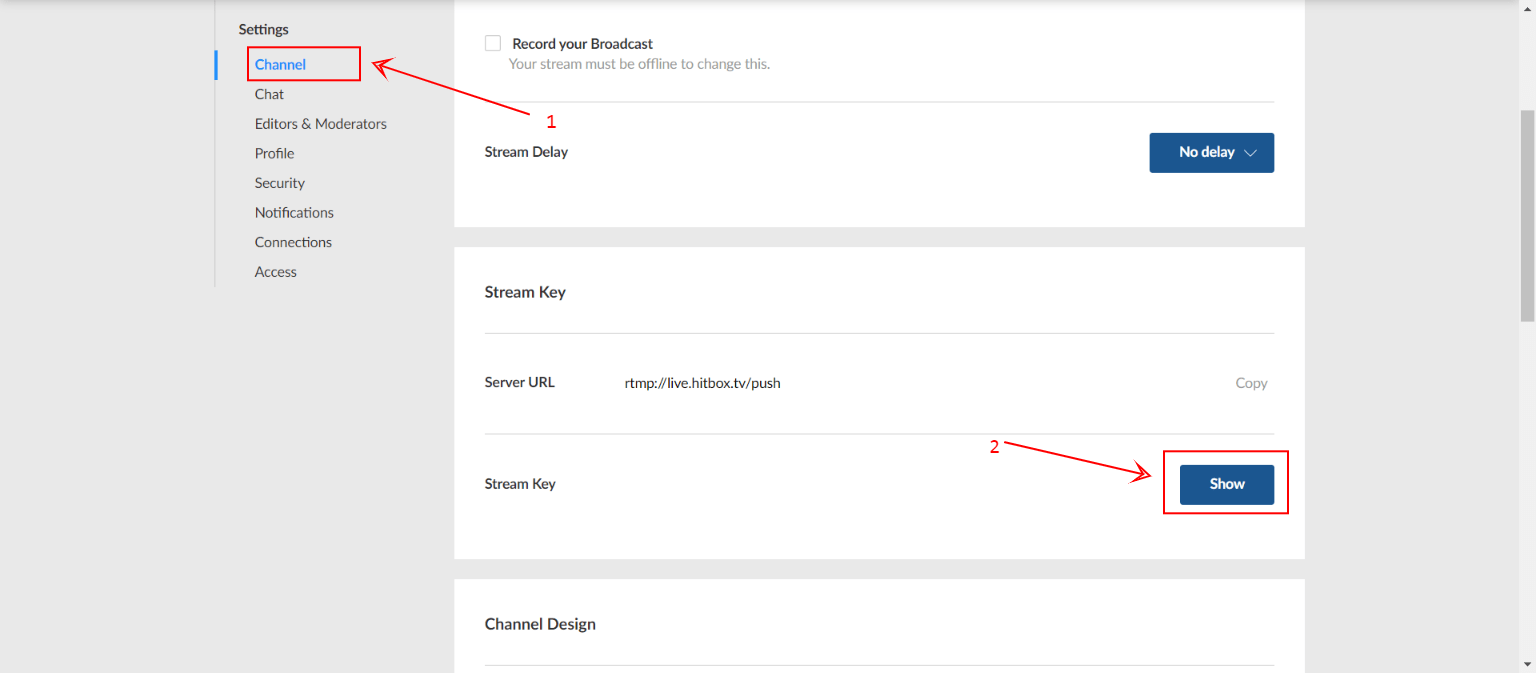
1.3. Choose “Channel” in the Settings menu (1) and click the “Show” button (2).
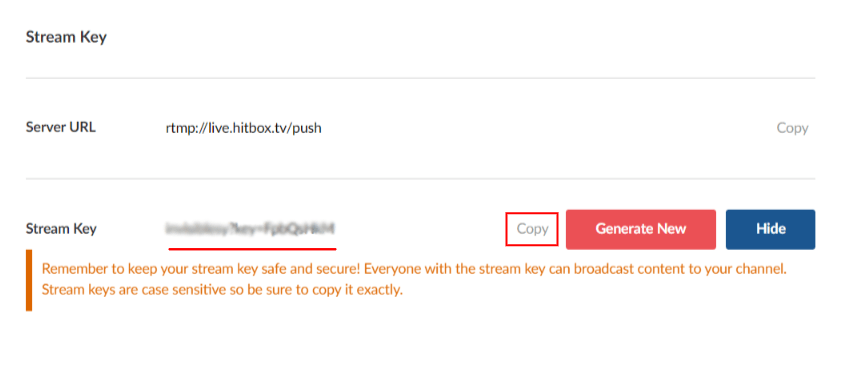
1.4. Copy your Stream key.
2. Set up the Smashcast channel in Streamster
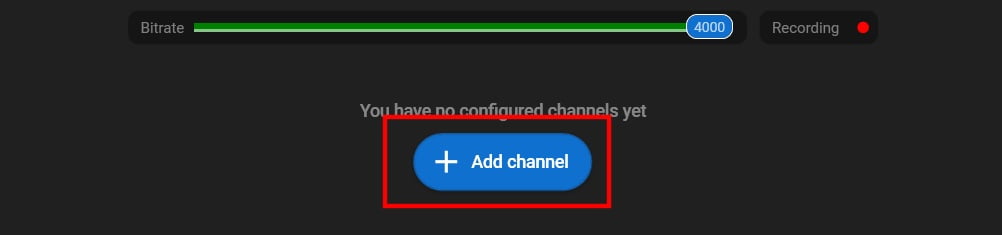
2.1. Click the “Add channel” button.
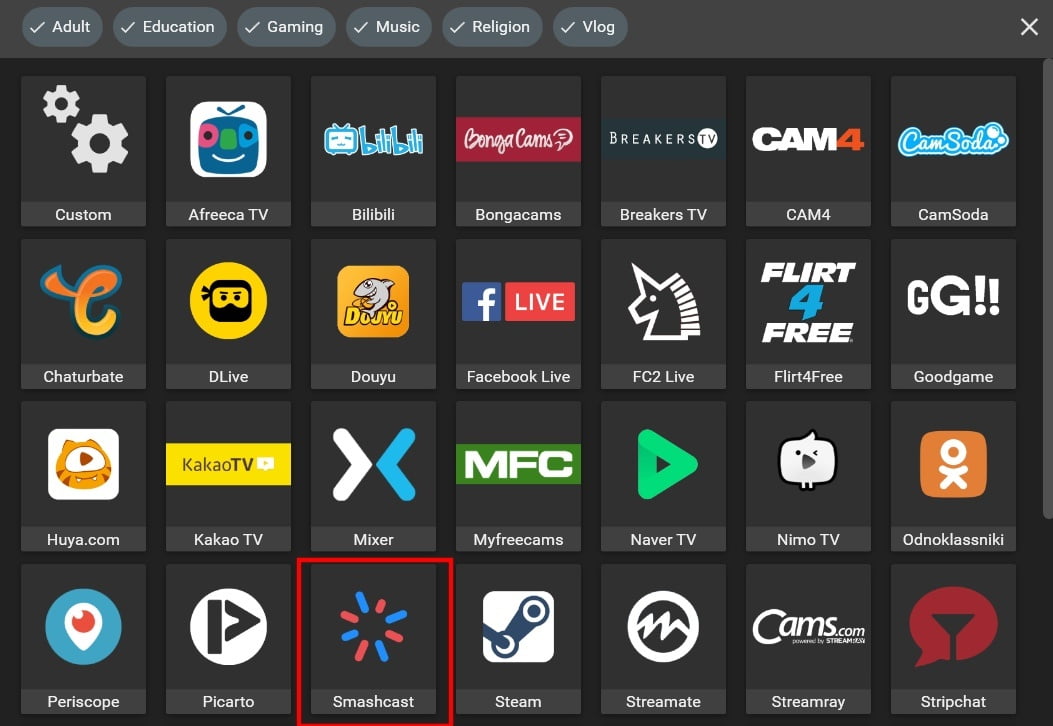
2.2. Select the “Smashcast” icon.
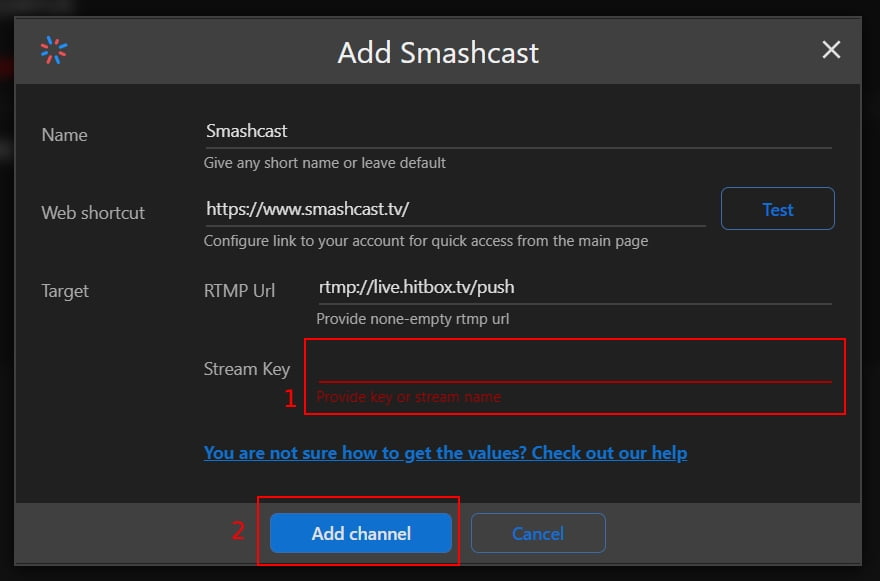
2.3. Paste your Stream Key (1), and click the Add channel button (2).
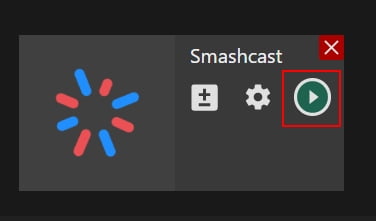
2.4. Start your live stream on the platform.
More articles:
- How to multistream to Youtube with streaming software
- How to multistream to Facebook with the Stream key
- How to zoom in/out on a live stream
- How to stream from multiple cameras
- How to add the watermark (image overlay) to your live stream