
Manual: How to stream to DLive with external encoder
Why Streamster?
Streamster is the video content creation and live streaming app for Windows. It has many features for video editing and live stream management. And it also can deliver the live stream to multiple platforms with the help of restreaming technology, which allows streamers to expand their audience. DLive streaming channel is available in Streamster among other platfrorms.
1. Set up the external encoder on DLive
1.1. Log in to your DLive account.
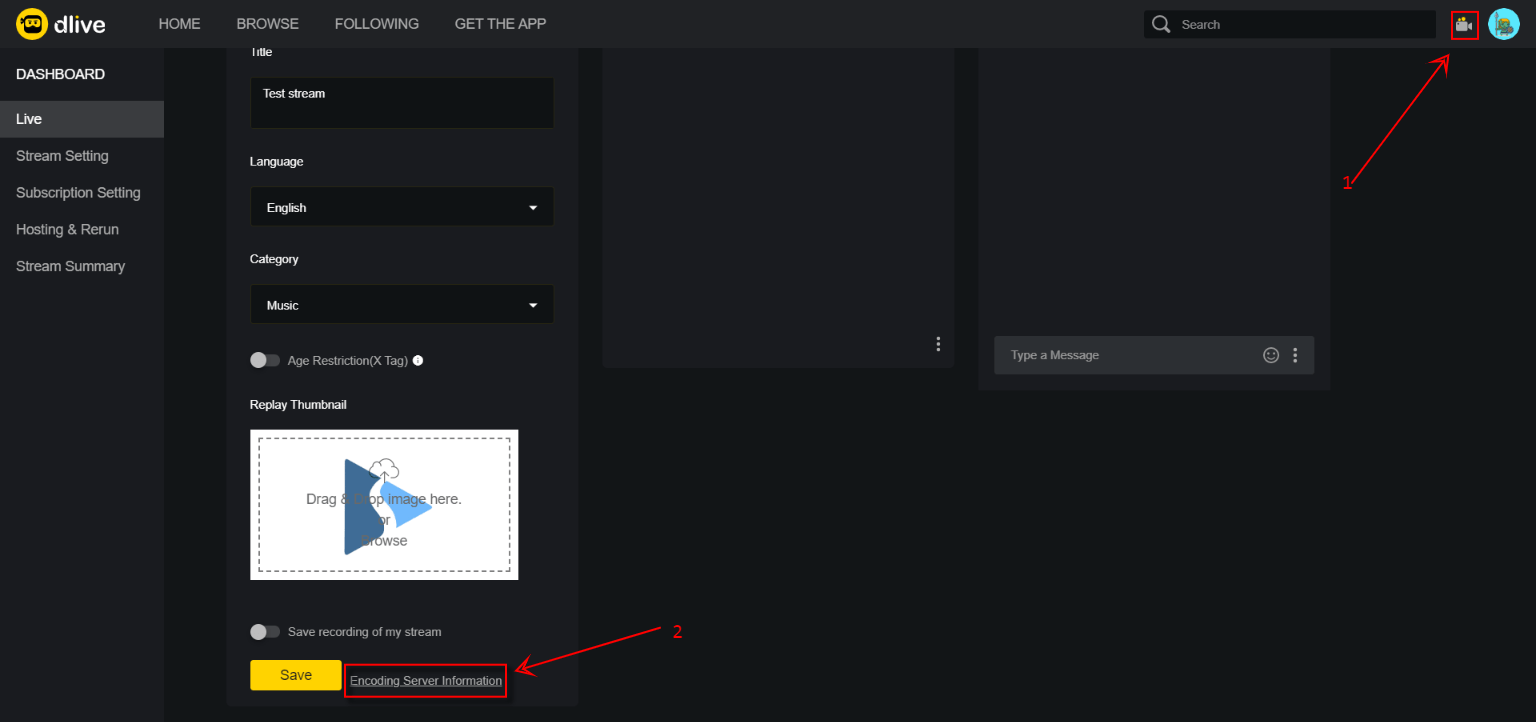
1.2. Click the Camera icon in the upper right corner (1) and click the “Encoding Server Information” link at the bottom of the page (2).
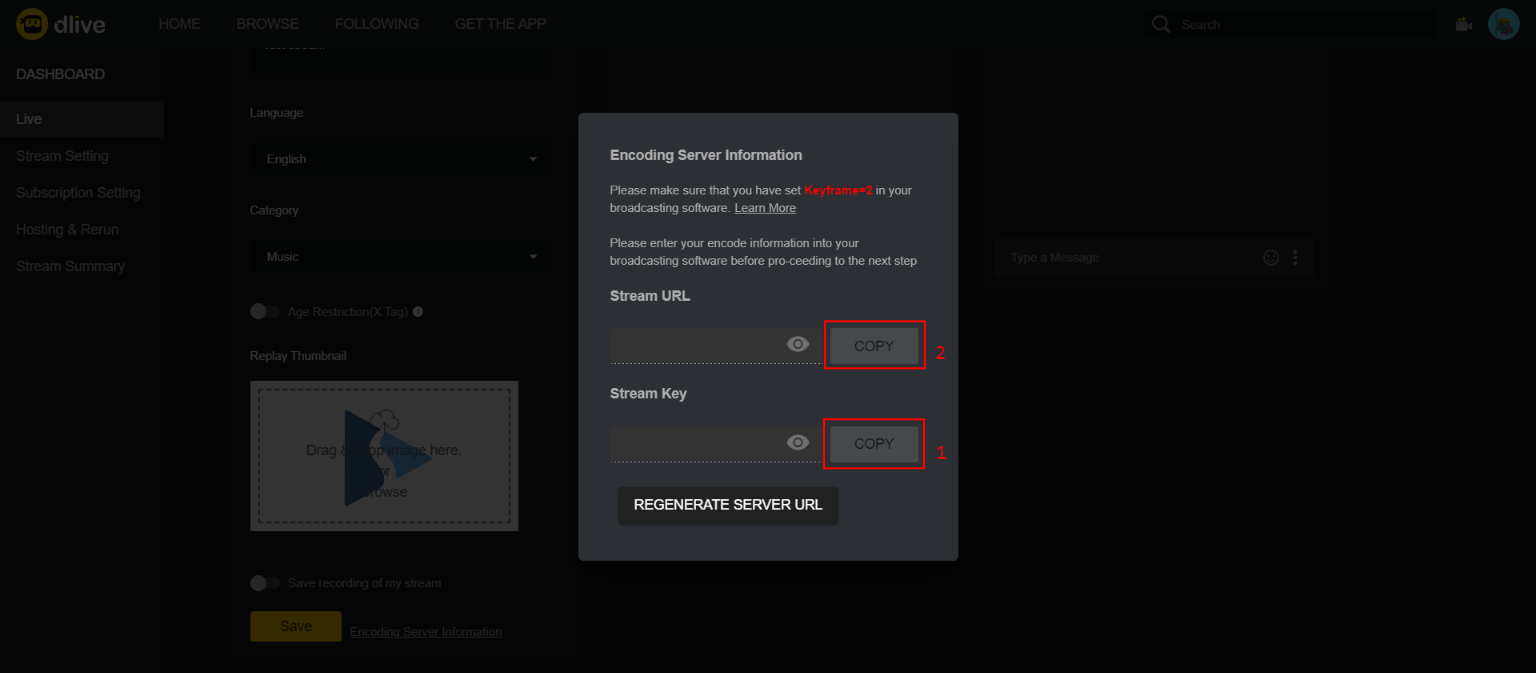
1.3. Copy Ingest server link (1) and Stream key (2).
2. Set up DLive channel in Streamster
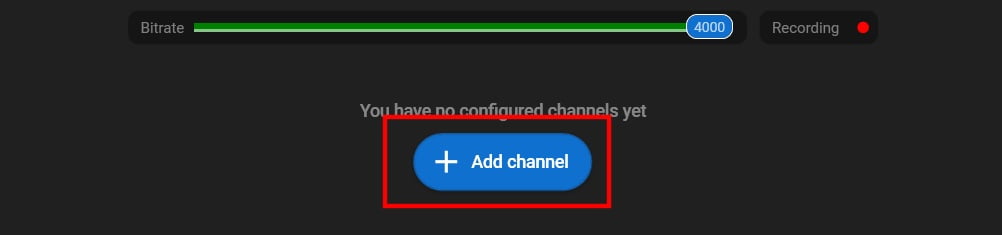
2.1. Click “Add channel” button.
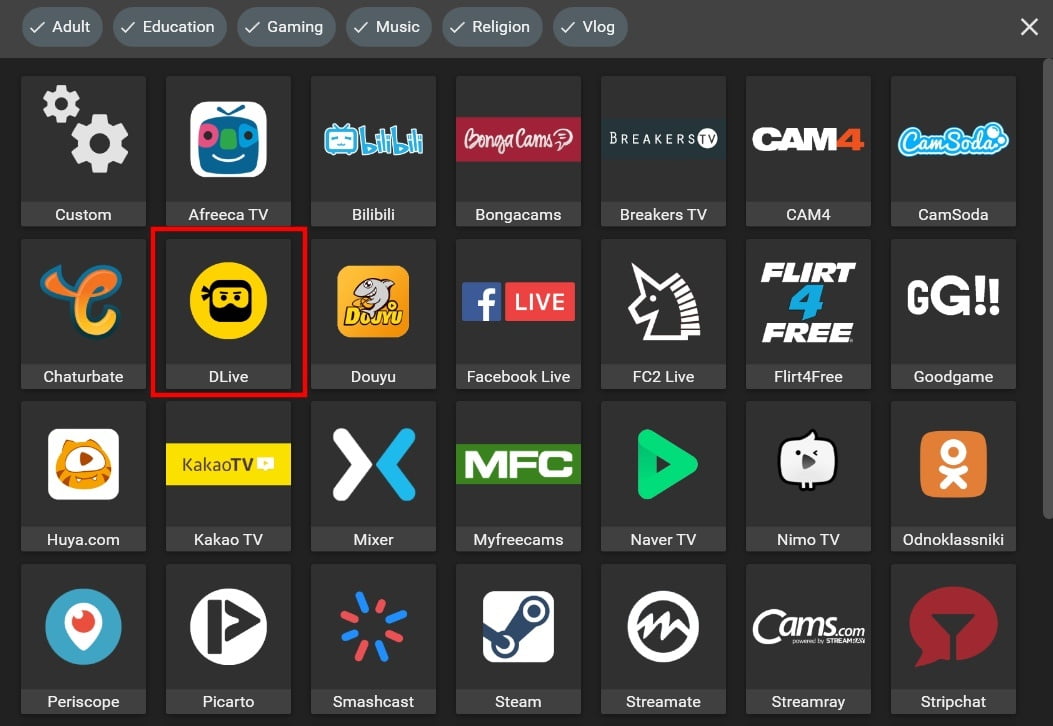
2.2. Choose “DLive” from the list of channels.
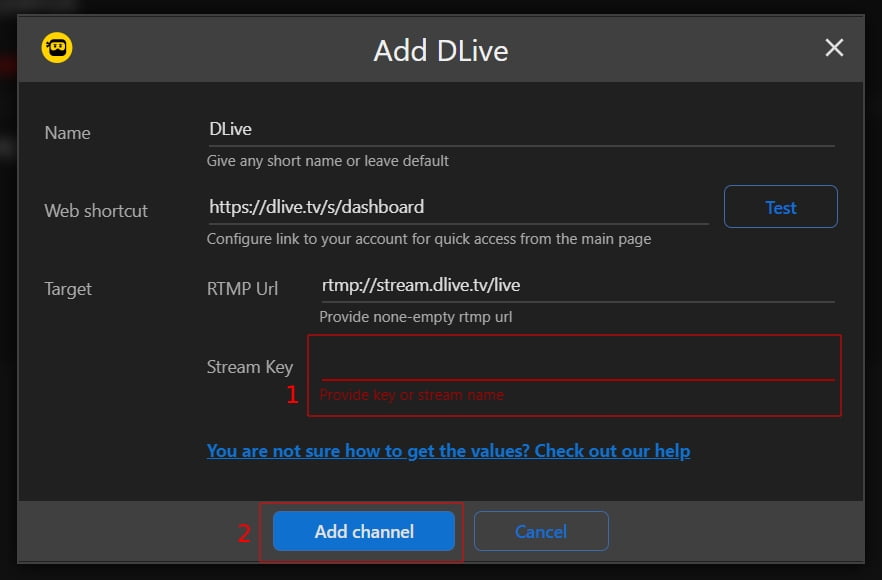
2.3. Paste your RTMP URL (1), Stream key (2), and click the Add channel button (3).
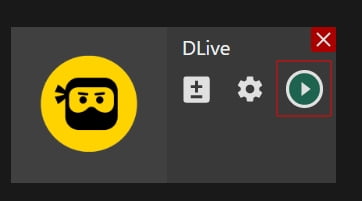
2.4. Launch the live stream on the platform.
More articles:
- How to multistream to Youtube with streaming software?
- How to flip the live stream video horizontally?
- How to zoom in/out on a live stream?
- How to stream from multiple cameras?
- How to add the image overlay to your live stream?