
How to add the video filter to the web camera stream
What is Streamster?
Streamster is a Windows video content creation and live streaming app. It can deliver your stream to multiple platforms with the help of restreaming technology, which will help you to extend your audience. Streamster has many possibilities for customizing a stream from the web camera, including various video filters.
1. Download and launch the Streamster app (creating an account is optional, but it unlocks additional features).
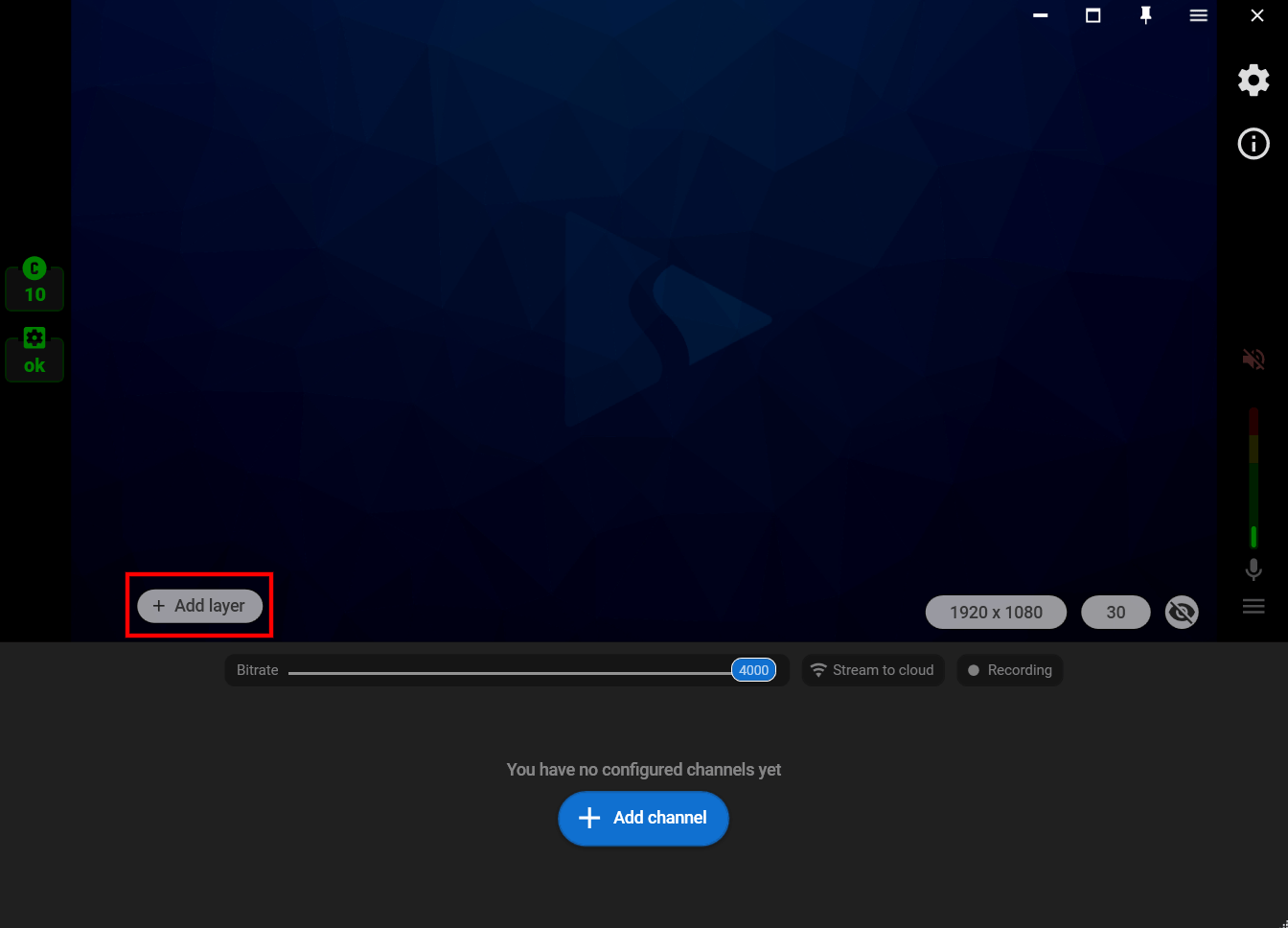
2. Add the first video source by clicking the “Add layer” button.
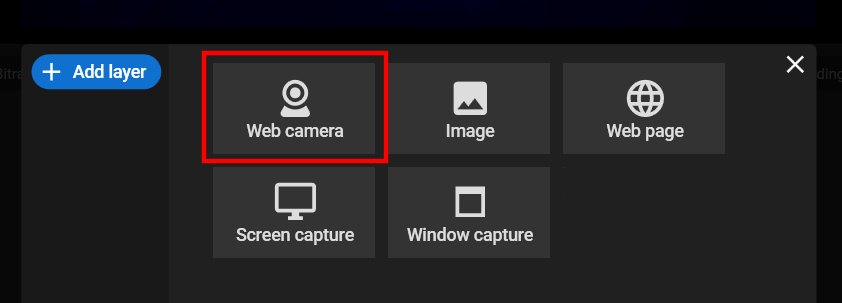
3. Choose the “Web camera” video source and select the needed camera from the list of available devices.
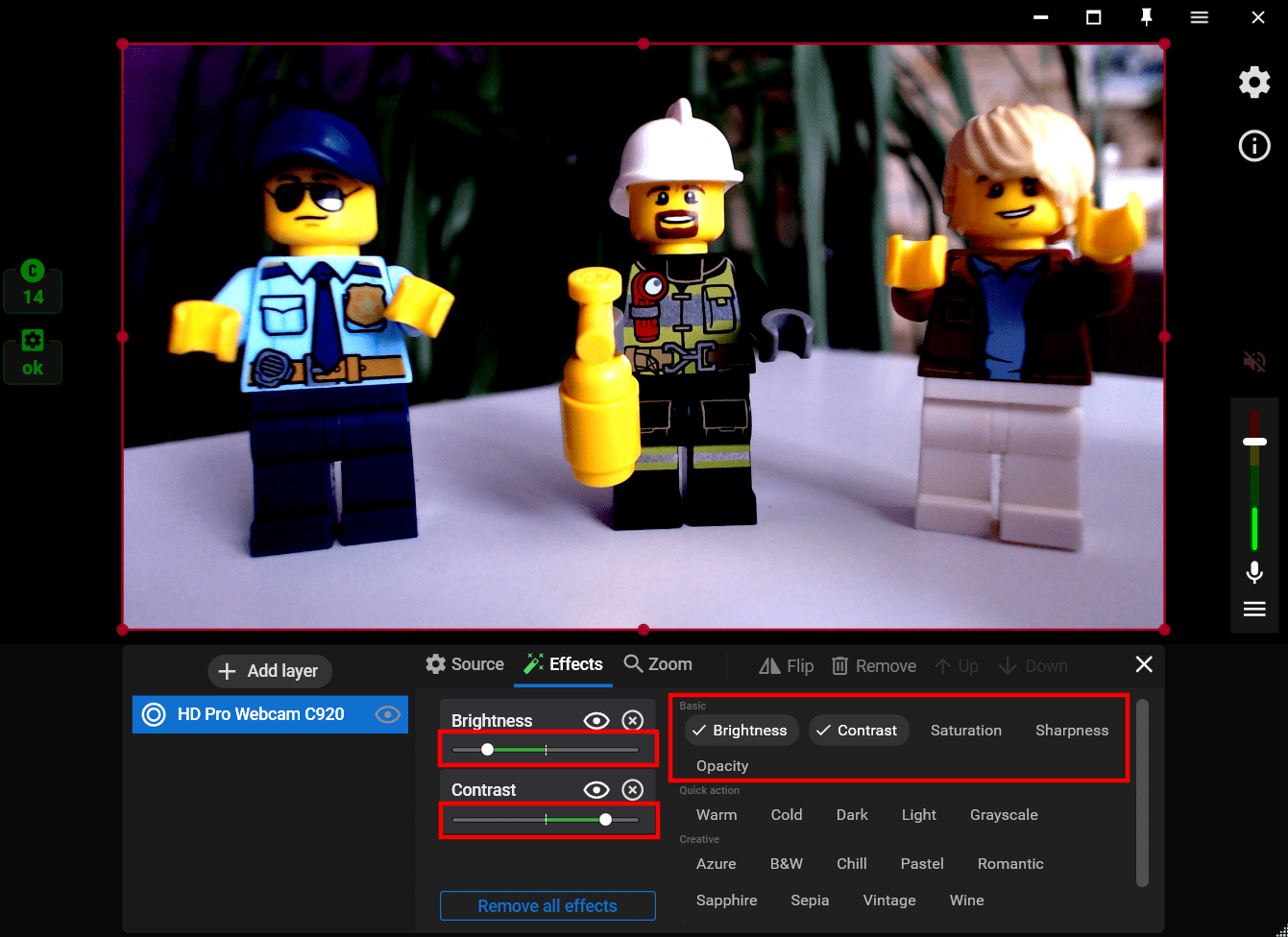
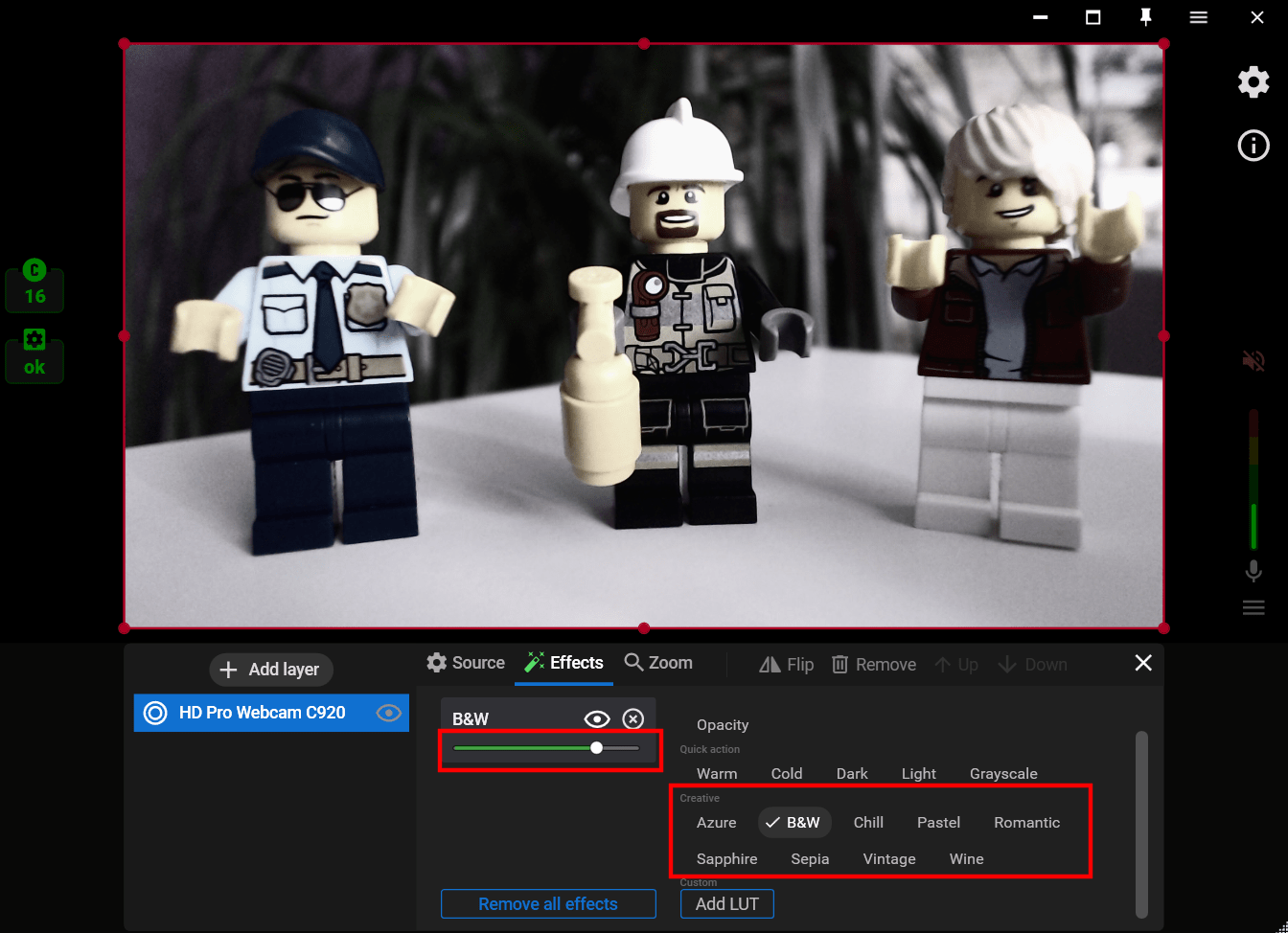
4.Click the “Effects” tab to see the list of available filters:
4.1. Select one of the basic filters to change the levels of Brightness, Contrast, Saturation, Sharpness, and Opacity.
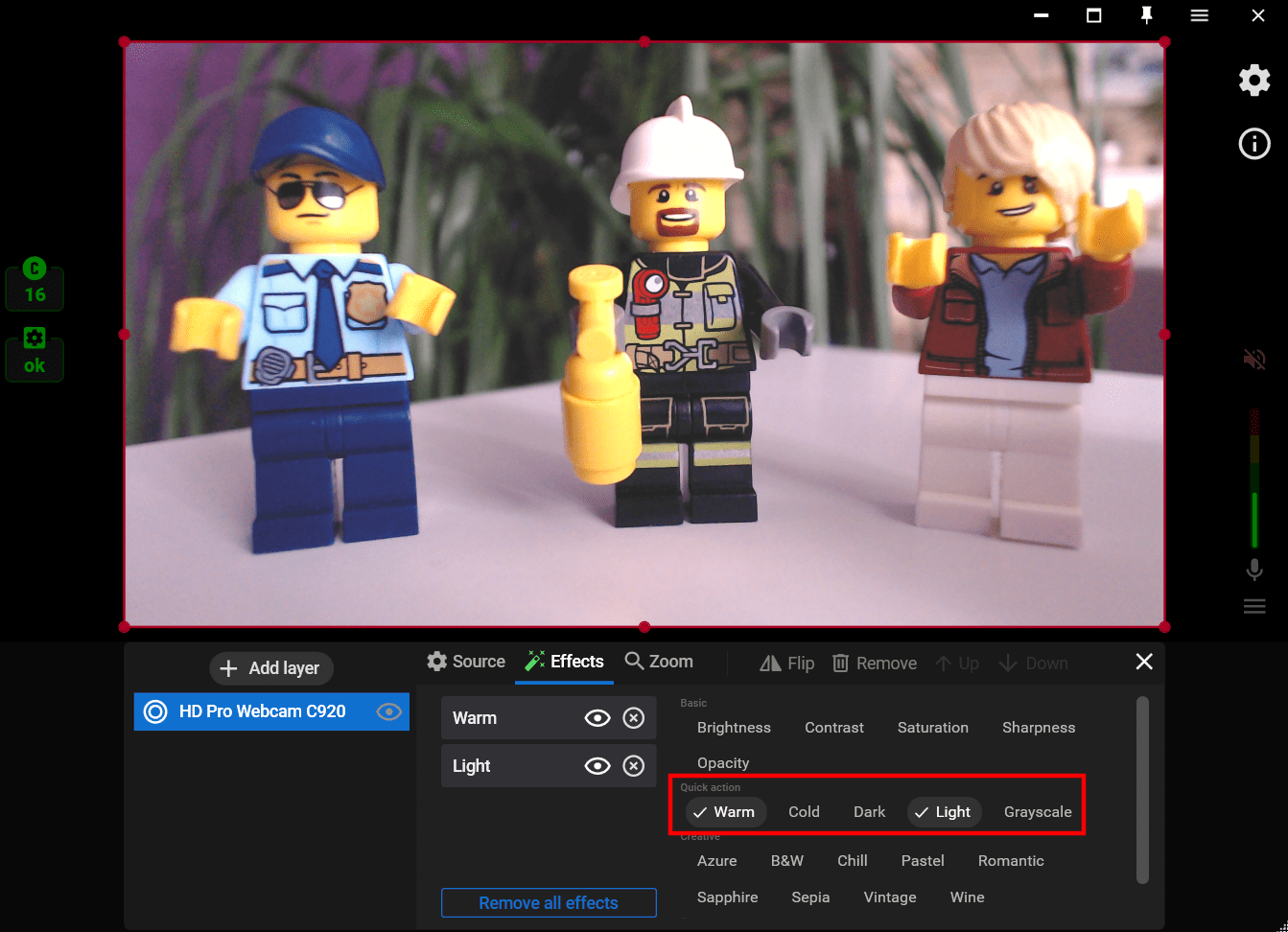
4.2. Select one of the quick action filters to make your video warmer / colder / darker or lighter.
4.3. Choose one of the preload Streamster LUT filters. Change filter opacity if needed.
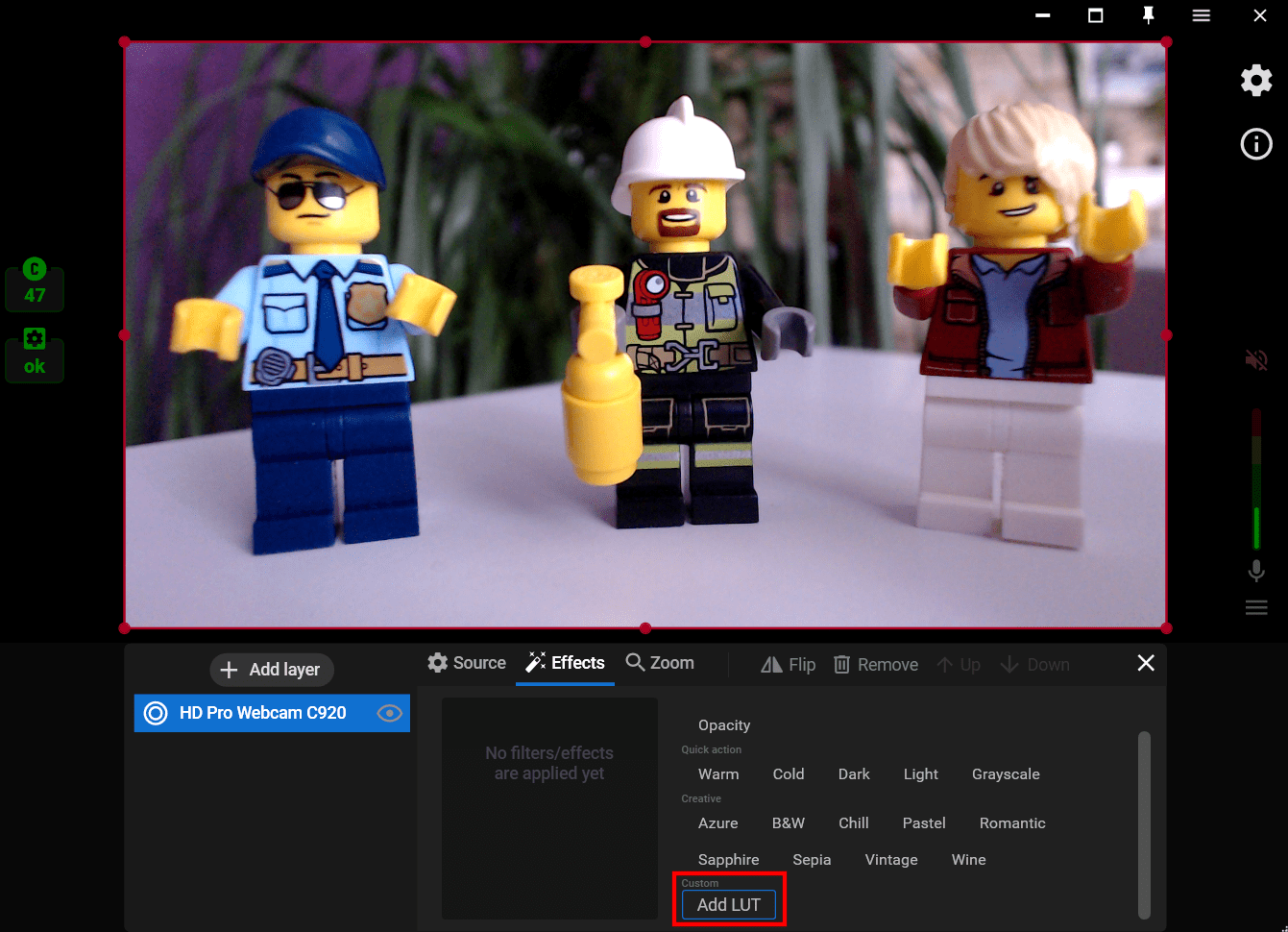
4.4. Upload your custom LUT filter in .png or .cube format by clicking the “Add LUT” button.
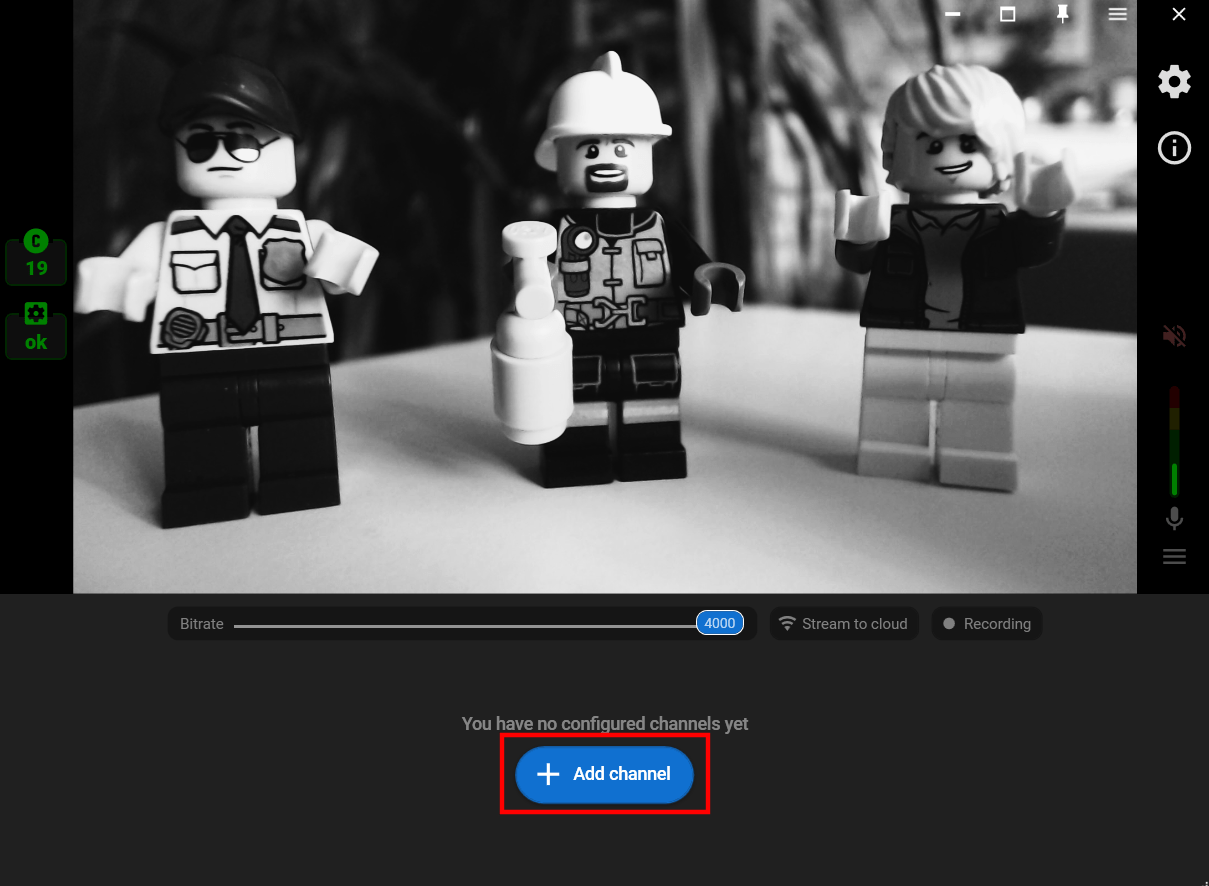
5. Close the layer settings window, click the “Add channel” to set up streaming to one or multiple platforms.
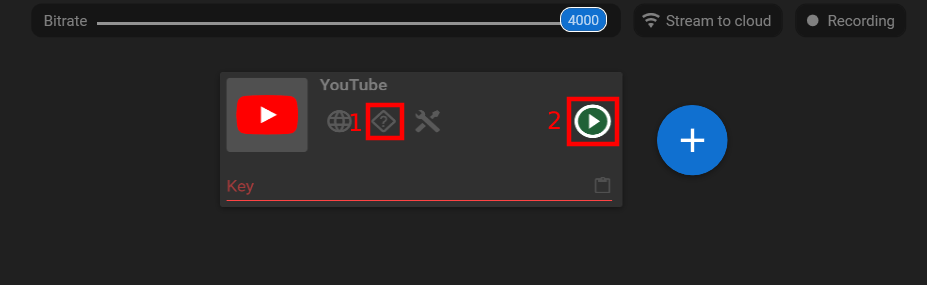
6. Follow the connection instructions (1) and start your stream (2).
Video tutorial:
More articles:
- How to stream to Facebook and Youtube at the same time for free?
- How to flip the live stream video horizontally?
- How to zoom in/out on a live stream?
- How to stream from multiple cameras?
- How to add the watermark to your live stream?